Link two entities in one gesture
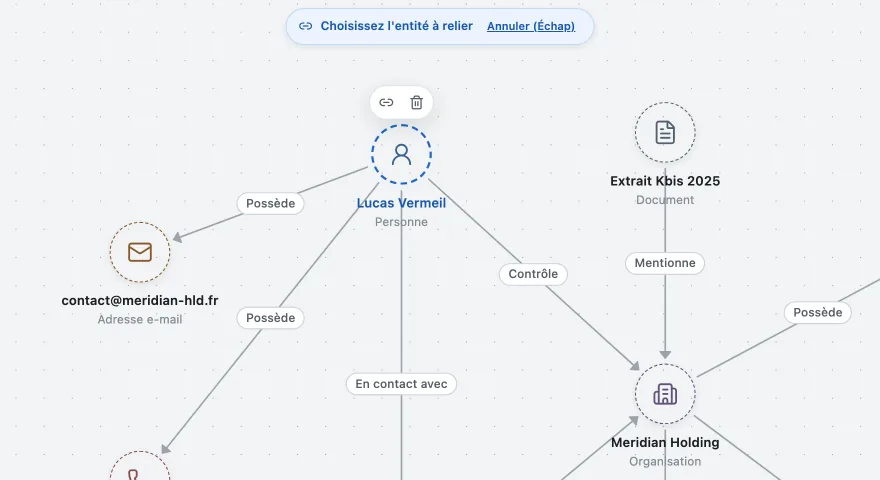
You click the entity you start from, then the one you end on. The link is drawn. If you change your mind halfway, the Escape key cancels everything.
Put the people, companies, domains and documents of your case on a single map, then link them together. You see at a glance what a list will never show you.
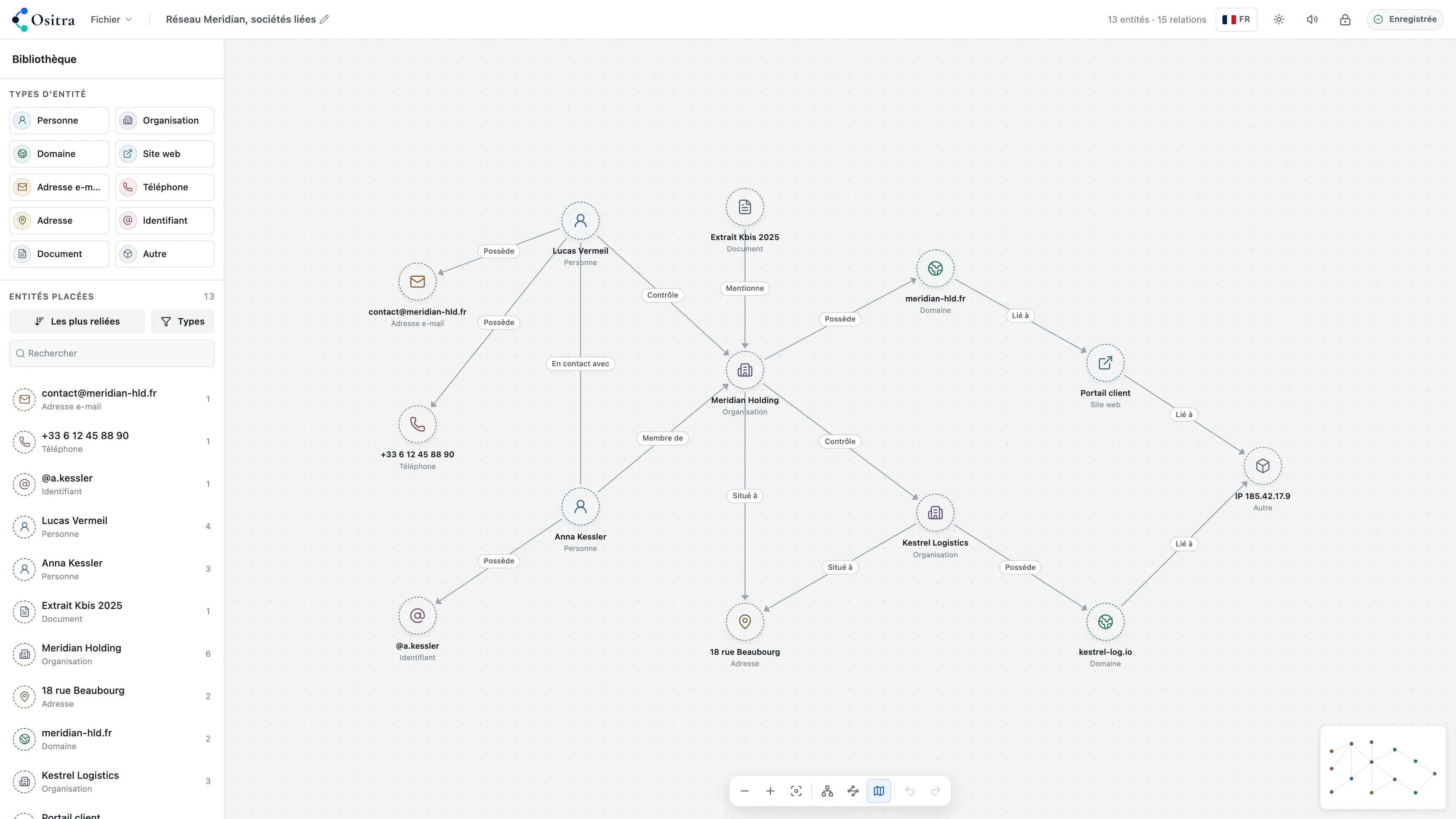
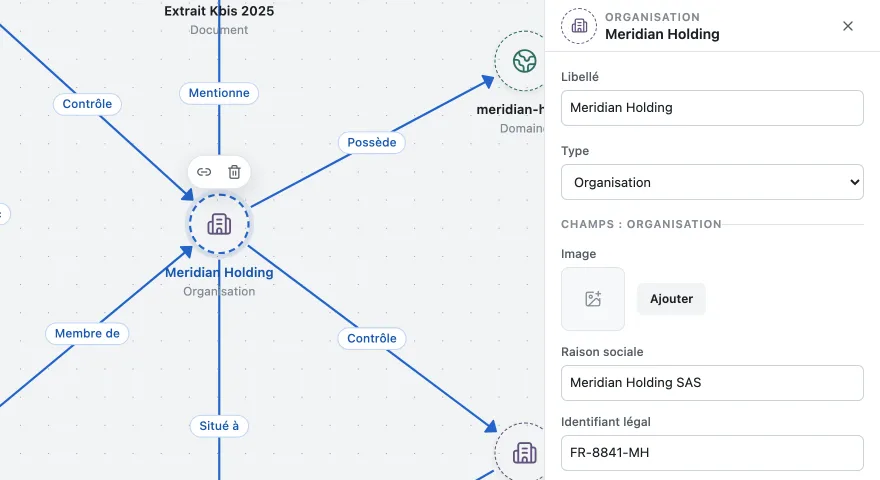
Every kind of entity has its own colour and its own fields. And because an unnamed line teaches you nothing, you state what the link means: six months later, you will still know why you drew it.
A case scatters fast across tabs and notes. Here everything sits in one place, and every action can be undone.
You click the entity you start from, then the one you end on. The link is drawn. If you change your mind halfway, the Escape key cancels everything.
A company asks you for a legal name and a registration number. A domain, its host and its creation date. The fields follow the kind you picked.
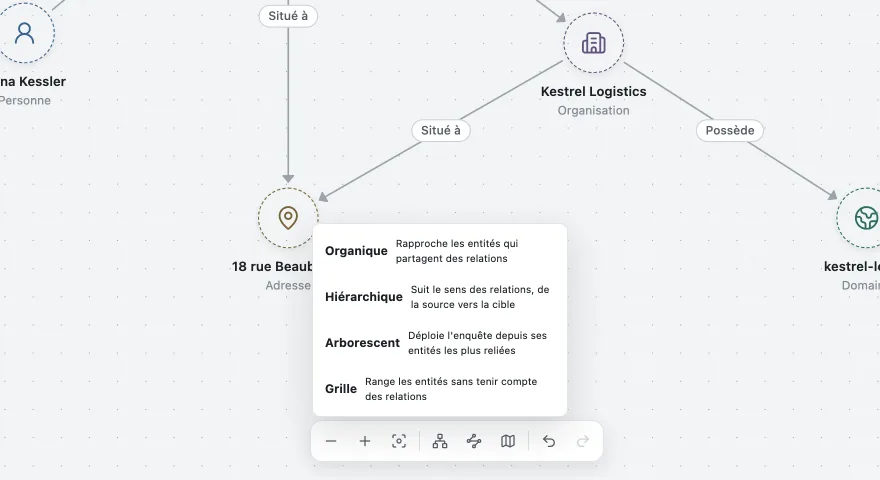
Pull linked entities together, follow the direction of the links, spread the map into a tree, or line everything up on a grid. You pick the layout, the map rearranges itself.
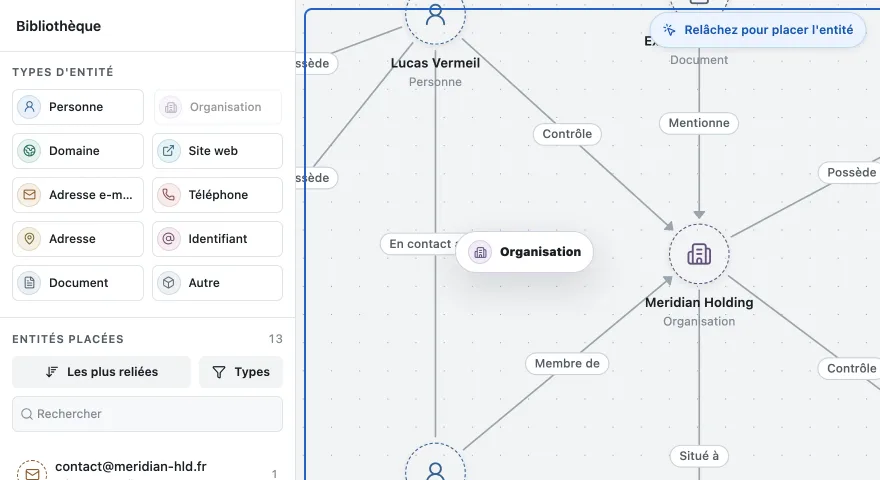
The kinds sit on the left, next to the list of what the case already holds. You drag a kind onto the map and the entity appears where you aimed, ready to be named.
Ositra runs on your machine. There is no account to create and no case is ever sent to a server.
You open the app and you start. No sign-up, no confirmation email.
Your changes are stored while you work, without you thinking about it. The header tells you where the save stands.
One password, and your cases become unreadable without it, their titles included. The key never leaves your machine.
A case exports to a file you keep or pass on, and the map exports as an image. You can take everything with you at any time.
The same four steps, whether the case holds three entities or three hundred.
You place each piece of information on the map, wherever you want it.
You draw the link between two entities and you state what it means.
You ask the map to reorganise itself, without losing links or fields.
You export the whole case, or an image of the map to attach to a report.
These only become noticeable in use, when a case runs across several days.
A deletion by mistake, a layout that does not suit you: undo works as many times as you need.
An overview stays in one corner of the screen, and a button reframes the map on its contents.
Whatever you can do with the mouse you can do with the keyboard, with a visible outline on the selected element.
A few short sounds confirm what you just did. One button in the header turns them off.
Investigation mapping is a method before it is a piece of software. These pages explain the approach, what each profession looks for in it, and the rules it operates under.
Three professions, three ways of using the same map.
The ground rules: what OSINT is, how an investigation map is built, and what the law says.
On your own computer, in the browser running the app. Saving happens by itself while you work, and nothing is sent to a server. No account is needed to get started.
Yes. A case exports to a file you can file away, archive or pass on, then reopen elsewhere. That file holds the whole map: the entities, their fields, their positions and the links between them.
Every action can be undone. Creating an entity, drawing a link, moving part of the map, deleting: one step back returns you to the previous state, as many times as you need.
People, organisations, domain names, websites, email addresses, phone numbers, postal addresses, online accounts, documents, and a free-form kind for everything else. Each kind opens the fields that apply to it.
No. It changes where entities sit, never their fields nor the links between them. If the layout it proposes does not suit you, one step back restores the previous one.
Not for the tool itself. Opening a case, adding an entity, drawing a link or exporting the file all work offline. The connection only serves your own research.
The tool lets you create a case, link its entities, arrange it and export it. Cloud syncing, teamwork, installation on your own servers and more will follow. None of it will change how your files are stored, and none of it will force you to migrate.
If you decide so. Protection is turned on from the app with a password of your choosing: cases then become unreadable without it, titles included. The key never leaves your machine and disappears when you close the tab. A recovery code is handed to you at activation, to be kept somewhere other than this computer.
The recovery code handed to you at activation opens your cases in place of the password. Without it, nobody can reopen them: there is no account and no server to recover them from. That is the trade-off of a tool that holds nothing of yours.
Yes. An exported file can carry its own password, separate from the one guarding your cases on your machine, since the recipient cannot have yours. Send it through a channel other than the file itself. An image of the map, however, stays readable: it cannot be encrypted.